
WiFi QR Code Generator
Generate a custom scannable WiFi QR code with logo, custom colors, and printable vector formats. Guests scan to connect instantly without typing passwords.
Built by Toolsque Team · last updated September 16, 2026 · checked against our testing process
How to Generate a WiFi QR Code
- Enter WiFi Details: Type your WiFi network name (SSID) exactly as broadcast by your router and check the hidden network box if your network name is not broadcast publicly.
- Add Password: Enter the network security key and choose your authentication protocol (WPA/WPA2, WEP, or None for open networks).
- Set Print Size: Adjust the QR size in millimeters for your intended medium, such as 30 mm for table tents or 100 mm for wall posters.
- Customize Appearance (Optional): Click Customize Style, Colors & Logo to adjust dot shapes, corner markers, brand colors, or embed your company logo.
- Download and Test: Download your code in PNG for digital use or scalable SVG for print, then scan it with your phone camera to confirm instant connection.
How to create a QR code for WiFi
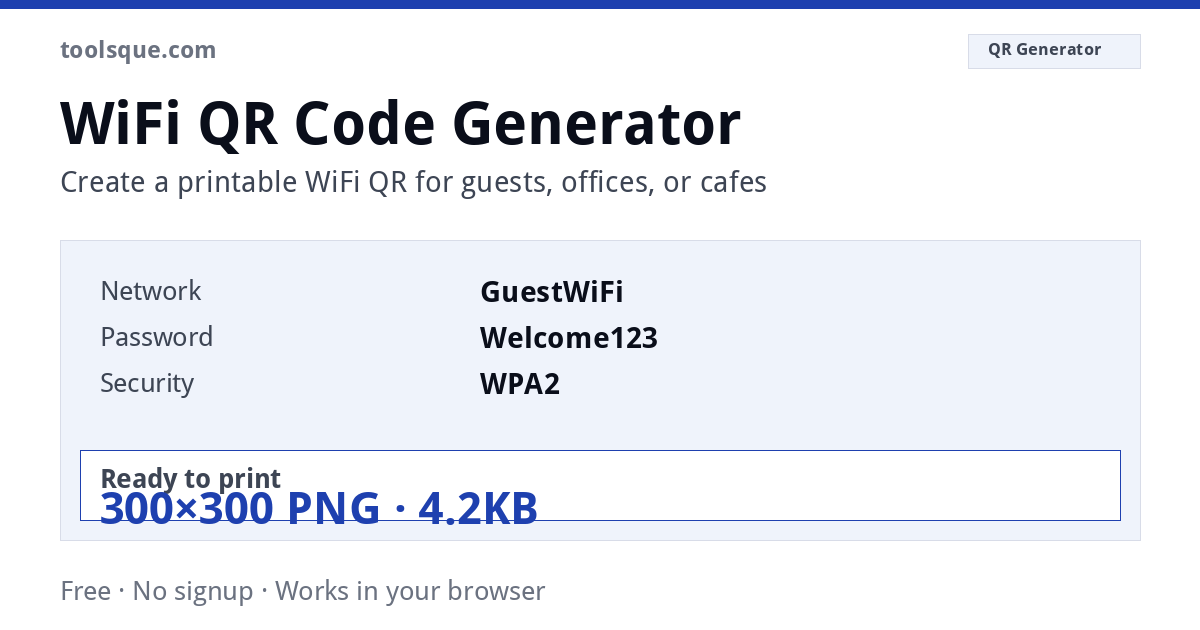
Three fields and you are done. Type the network name exactly as it appears in your phone's WiFi list, capitals included, put in the password, pick the security type, and the code appears above. Download the PNG for a screen or the SVG to print. That is the whole job, and it is the same whether you searched for a WiFi QR maker, a wifi qr code creator, or how to generate a QR code for WiFi: they are all this one tool.
People often type it as one word, wifiqrcode, which is the same thing. There is no separate standard behind the spelling. What matters is that the text inside the code follows the WIFI: format below, because that is what tells a phone this is a network and not a link.
The WiFi QR code format explained
WIFI:T:<auth>;S:<ssid>;P:<password>;H:<hidden>;;WIFI:T:WPA;S:MyNetwork;P:MyPassword;H:false;;WPA covers WPA/WPA2/WPA3, WEP for legacy, nopass for open networks). S is the SSID, P the password, H whether the network is hidden. The trailing double semicolon terminates the string and is required: codes that fail to scan are very often missing it. If your SSID or password contains ; , : " each must be escaped with a backslash. This generator encodes at error correction level H, so the code still scans with a logo overlaid or with print wear. QR codes follow ISO/IEC 18004. Error correction comes in four levels, L (~7% recoverable), M (~15%), Q (~25%) and H (~30%), and a quiet zone of at least 4 modules of clear space is required around the symbol for reliable scanning. Worth knowing: the WIFI: scheme is a de-facto convention originating with the ZXing project rather than a formal ISO standard, but it is supported natively by Android and by the iOS Camera app since iOS 11. Everything runs in your browser. Nothing you enter or upload is sent to a server, logged or stored.WIFI:T: rather than offering to connect, paste that text into the WiFi QR decoder to pull out the network name and password.Authentication types and what each actually does to your network
Every WiFi QR code embeds one of four authentication tags: nopass, WEP, WPA, or WPA2/WPA3 (both reported as WPA in the WIFI: URI scheme). Choosing the wrong type produces a QR code that scans correctly but fails to connect. WEP has been formally deprecated since 2004 and is broken by publicly available tools in under 60 seconds against a standard 40-bit key. Android 10 and iOS 14 both flag WEP networks as insecure, and some devices will not join them automatically. If your router shows WEP as an option, treat it as a hardware replacement signal, not a configuration choice.
WPA2-Personal (AES-CCMP) remains the minimum acceptable standard for any commercial guest network. WPA3-SAE, introduced in 2018, eliminates the offline dictionary attack vector entirely by using a Simultaneous Authentication of Equals handshake. Routers shipping after July 2020 are required by the Wi-Fi Alliance certification program to support WPA3. Check your router admin panel under Wireless Security; if WPA3 appears, generate your QR code against that mode rather than WPA2.
Password length, character limits, and encoding edge cases
The WIFI: URI scheme supports passwords up to 63 printable ASCII characters for WPA/WPA2, matching the WPA-PSK specification in IEEE 802.11-2020. Passwords containing a semicolon (;), backslash (), comma (,), colon (:) or double quote (") must be escaped with a leading backslash in the raw QR payload. An unescaped semicolon ends the password field early, so the phone tries to join with a truncated password and fails. This generator escapes all five for you. The SSID field has a separate limit of 32 bytes (not characters); an SSID using four-byte UTF-8 emoji consumes 4 bytes per character, reducing the effective name limit to 8 emoji.
Hidden networks require the H:true flag appended to the WIFI: string. Without it, the phone may join once and then fail to find the network again, because it will not go looking for an SSID that is not broadcast. If you generated a QR code for a hidden network using a different tool and find intermittent reconnection failures, decode the raw payload using the WiFi QR code decoder to confirm whether the H: flag is present.
QR code version and scan distance in practice
A typical WPA2 WIFI: payload runs 50 to 80 characters. At that length, this generator outputs a Version 6 to Version 8 QR code (41x41 to 49x49 modules) at error correction level H, which tolerates about 30% module damage. Print size directly controls scan distance: a 2.5 cm printed QR code scans reliably at up to 20 cm with a rear camera; a 10 cm print extends reliable range to roughly 80 cm. Restaurant table-tent use requires a minimum 3 cm printed size for ambient-light reliability. Lamination adds glare and lowers contrast a little; compensate by printing about 20% larger. This generator is already at level H, so there is no higher setting to fall back on. Scan any printed code to verify the embedded credentials before distributing printed materials.
WiFi QR Code Without a Password
Open networks skip the password field entirely. Set encryption to None and the generator writes WIFI:T:nopass;S:CafeGuest;;, with the P field omitted rather than left blank. Any phone that scans this string joins with zero prompts, which is exactly what you want at a cafe counter or in a waiting room.
One catch: captive portals. Hotel and airport networks are usually open at the radio level but gate access behind a login page. A QR code handles the association step only, so guests still see the portal screen after joining. That is normal, not a broken code. The full field breakdown is in our WiFi QR format guide.
Find Your WiFi Password First
You cannot generate a code for a password you do not remember. Pull it from a device that is already connected:
- Windows 11: open Command Prompt as administrator and run
netsh wlan show profile name="YourSSID" key=clear. The password sits on the Key Content line. - iPhone, iOS 16 or later: Settings, Wi-Fi, tap the i icon next to the network, tap Password, then confirm with Face ID or your passcode.
- Mac: open Keychain Access, search for the SSID, double click the entry, tick Show Password, and enter your Mac login password when asked.
Already have a printed code but lost the text behind it? Our WiFi QR decoder extracts the SSID and password from a photo, and this guide walks through getting a WiFi password from a QR code step by step.
Which Devices Can Join by Scanning
Scanning support is not universal. The failures cluster on older Android and on desktops:
| Device | Minimum version | How it joins |
|---|---|---|
| iPhone, iPad | iOS 11 | Native Camera app, tap the join banner |
| Android | Android 10 | Camera app, or the QR scanner inside WiFi settings |
| Older Android | Android 8 or 9 with Google Lens | Lens reads the code and offers to connect |
| Windows 10 and 11 | No camera join | Decode the code, then type credentials manually |
| macOS | No camera join | Same manual route as Windows |
Laptop and PC users get the full desktop walkthrough in connecting to WiFi by scanning a QR code.
Encode the Guest Network, Not Your Main One
A shared QR code is only as safe as the network it opens. Most home routers sold in the last decade can broadcast a second SSID walled off from the main one: recent TP-Link Archer firmware keeps the setting under the Advanced tab as Guest Network, and the Netgear Nighthawk app shows a Guest WiFi option right on its home screen. Create something like Home-Guest with its own password, then generate the QR code from that SSID.
The payoff: your smart plugs, cameras, and NAS stay on a main SSID no guest ever sees, and you can rotate the guest password monthly without reconnecting a single one of your own devices. Reprint one card, done.
Print Size in Pixels: The DPI Math
A printable WiFi QR code is sized in centimeters, but the PNG you download is measured in pixels. The bridge is DPI: at 300 DPI print quality, one centimeter needs 118 pixels (300 divided by 2.54). So a 5 cm table card needs a PNG at least 591 pixels wide, and a 3 cm sticker needs 355 pixels. Downloading a small PNG and scaling it up in Word or Canva blurs the module edges, one of the most common causes of blurry codes that fail to scan.
Anything above 10 cm, a poster, a window decal, an A-frame sign, should use the SVG download instead. SVG is vector, so it prints sharp at any size with no pixel math at all.
Two related guides: making a WiFi QR code without installing an app, and printing one for guests so nobody has to read your password aloud.
Encoding a link rather than a network? The URL to QR code generator does the same job for web addresses, with the same size and contrast rules that decide whether a printed code actually scans.
Frequently Asked Questions
Does scanning a WiFi QR code expose my password to the scanner?
Devices that scan a WiFi QR code read the embedded SSID and password directly to configure their WiFi connection. On modern iOS and Android devices, the password is saved securely in system settings, but anyone using a generic QR code reader app can inspect the raw text credentials. For guests or public spaces, we recommend broadcasting a dedicated guest network rather than sharing your primary network credentials.
What encryption type should I choose for modern routers?
Most modern home and commercial routers use WPA2/WPA3-Personal (AES-CCMP). Choose WPA/WPA2 in the dropdown. If you operate an open network with no password or a captive portal splash page, select None.
Can iPhones and Android phones scan WiFi QR codes natively?
Yes. iPhones running iOS 11 or later and Android devices running Android 10 or later connect natively through their default camera apps. Simply point the camera at the code and tap the network join prompt that appears.
What size should I print the QR code for reliable scanning?
For tabletop displays and desk cards, print at least 30 mm by 30 mm (3 cm). For wall signs or window decals scanned from 1 to 2 meters away, print at least 100 mm (10 cm). For large signs, download the vector SVG format for crisp rendering at any resolution.
Does Toolsque store or upload my WiFi network name or password?
No. All QR code generation and SVG rendering occurs 100% inside your web browser using client-side JavaScript. No network names, passwords, or images are ever uploaded to any server.