
WiFi QR Code Decoder: Scan with Camera or Upload an Image
A WiFi QR code decoder that reads the network name and password out of any WiFi QR code. Upload an image or paste the raw text, decoded in your browser.
Built by Toolsque Team · last updated October 15, 2026 · checked against our testing process
1Add your QR code
Drop a WiFi QR image or screenshot hereScan with your camera or pick a photo
Or press Ctrl+V to paste one. Shows the network name, password, security type and hidden flag. Read in your browser, never uploaded.Shows the network name and password. Nothing is uploaded.
2Or paste the code text
Your network details
The network name and password, in plain text
- The password shown large, with numbers and symbols marked so it is easy to type
- The security type, and whether the network is hidden
- One tap to copy it, or to make a printable WiFi card
How to Decode a WiFi QR Code Online
- Upload the image: drag and drop the QR code, use the file picker, or press Ctrl+V to paste a screenshot directly from your clipboard
- Wait one second: the decoder reads the QR automatically using two detection engines (ZXing and jsQR)
- Copy your credentials: the network name (SSID), password, and security type appear clearly with individual copy buttons
- Connect manually: open WiFi settings on your laptop, TV, console, or any other device and enter the credentials
No account. No app. No camera permission required.
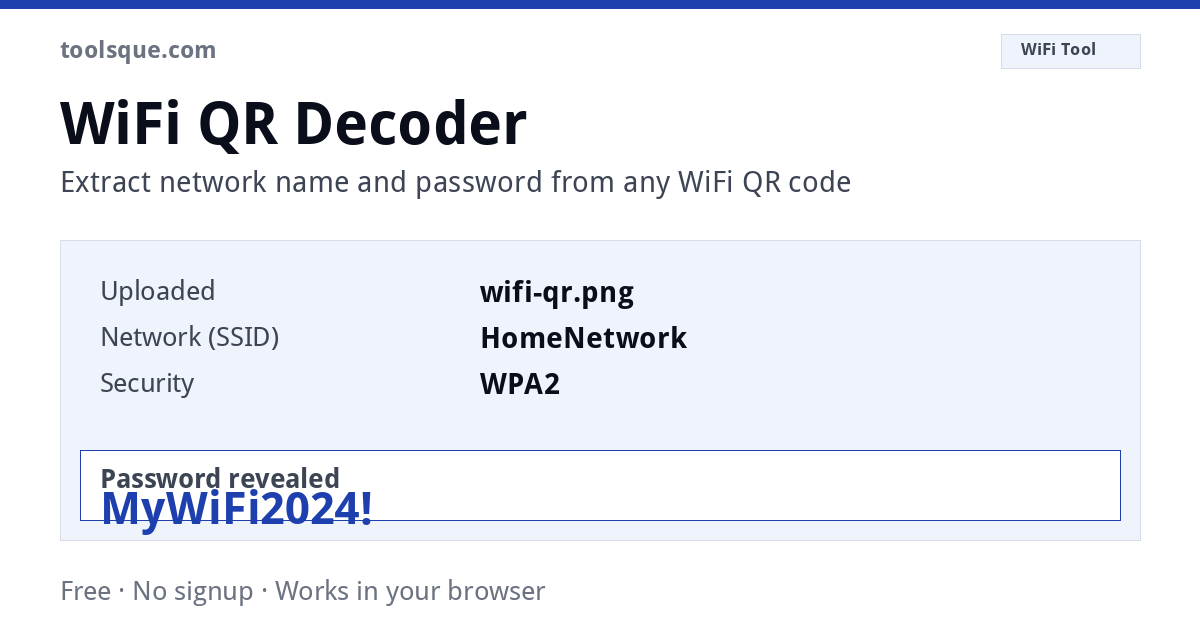
Scan a WiFi QR code and see the password
Point your camera at a WiFi QR code, or upload a picture of one, and this reads the network name (SSID), password and security type in plain text. You can also paste the raw WIFI: text if you already have it. No app, no login, and nothing leaves your device.
How the WiFi QR Decoder Works
- Paste the QR text: scan the code with your phone, copy the raw text, and paste it here. Or upload an image and the decoder reads it directly.
- Parser extracts the fields: the decoder splits the WIFI: format string into SSID, password, and security type (WPA2, WEP, nopass).
- Copy what you need: grab just the password, just the SSID, or all fields at once.
What Is a WiFi QR Code?
A WiFi QR code stores your network credentials in a standard format: WIFI:T:WPA;S:YourNetwork;P:YourPassword;;. Most routers and phones generate them automatically. Scanning one connects a device without typing anything, but if you need the actual password text, a WiFi QR decoder like this one pulls it out.
Common Use Cases
- You have the QR code printed but need the password to type on a device that won't scan
- You want to share your WiFi password with a guest who needs it in text form
- You forgot your password but still have the QR code sticker
- You need to verify the SSID or security type stored in the QR code
What this WiFi QR code decoder does
Paste the raw text or upload an image, and this WiFi QR code decoder prints the network name and the password as readable text. It runs entirely in your browser, so nothing you decode is uploaded or stored anywhere.
People arrive looking for the same thing under different names: a WiFi decoder, a WiFi password decoder, or a QR code decoder for WiFi password. They all describe one job, which is reading the text inside the code instead of acting on it. A phone camera does the opposite, joining the network and never showing you the characters.
How to get the WiFi password from a QR code
- Have the code as an image or text. A screenshot, a photo of a printed card, or the raw
WIFI:string if you already have it. - Drop it in above. Upload the image, or paste the text into the box.
- Read the fields. The network name and password appear immediately, along with the security type.
That is the whole process to get the password from a QR code. There is no account, no upload and no waiting, because the work happens on your own device.
The situation this tool solves
You scanned a WiFi QR code, from a router sticker, a cafe table tent, a hotel welcome card, and instead of connecting, your phone showed a wall of text. Or it connected your phone, but now you need the actual password to get your laptop online. Either way, the credentials are locked inside the code, and this decoder gets them out.
Two ways to decode
Upload the image. A photo of the sticker, a screenshot someone sent you, a saved QR image: drop it in and the decoder reads the code and displays the network name, security type, and password separately.
Paste the raw text. If a scanner app already showed you something like WIFI:T:WPA;S:HomeNetwork;P:s3cret!;;, paste it into the box above and it splits the fields cleanly, handling escaped characters that trip up manual reading.
A ZXing WiFi decoder online, nothing to install
Many people search for a ZXing decoder online to get a WiFi password, because ZXing is the open source library most QR apps are built on. A plain ZXing decoder gives you the raw string, for example WIFI:T:WPA;S:CafeGuest;P:latte2024;;, and leaves you to pick the password out yourself.
This decoder uses ZXing as its second reader, behind a faster first pass, and then does the last step for you: it splits the string into the network name, password, security type and hidden network flag, and undoes the backslash escaping that hides characters like semicolons. Nothing is installed and the image never leaves your browser.
How camera scanning works
Camera frame → decode → WIFI:T:...;S:...;P:...;; → split into fieldsWhy your camera shows text instead of connecting
This is the single most common complaint about WiFi QR codes, and it is not a fault in the code. Android has supported automatic WiFi joining from a QR code since version 10. iOS supports it through the Camera app on iOS 11 and later. Outside those paths (a third-party scanner app, a desktop webcam, a browser-based reader) the software has no permission to change your network settings, so it does the only thing it can and shows you the text.
What you see looks like this:
WIFI:T:WPA;S:MyNetwork;P:hunter2;H:false;;
That is the correct, complete content of the code. Nothing is broken. You simply need the fields pulled apart, which is what the scanner above does automatically.
Already connected? Get the password without a code
If the network is already saved on your phone, you may not need a QR code at all:
- iPhone, iOS 16 or later: open Settings, tap Wi-Fi, tap the (i) next to the network, then tap Password and confirm with Face ID or Touch ID. On iOS 18 the Passwords app can also show the network as a QR code for someone else to scan.
- Android 10 or later: open the network in your Wi-Fi settings and tap Share. Many phones print the password under the QR code. If yours only shows the code, take a screenshot and drop it into the decoder above.
Our guide to finding a WiFi password from a QR code walks through each phone step by step.
Where the password lives inside the code
A WiFi QR code is not encrypted. It is a plain text string in a standard format that Android and iOS both read. The S: field is the network name, P: is the password, T: is the security type. Our WiFi QR format guide documents every field, including the odd cases: hidden networks, WEP legacy codes, and passwords containing semicolons.
Common situations
Hotel gave you a QR but the smart TV needs a typed password. The office guest network is QR-only and your Linux laptop has no scanner. Grandma's router sticker faded except the QR square. A friend AirDropped you a screenshot of their network code. In each case: decode once, read the password, type it where you need it. If your only copy of the code is on the same phone screen you are scanning with, save it to your photos and upload it here: the decoder reads codes from screenshots already on your device.
A note on ethics and safety
Decoding a code that was shared with you is exactly what the code is for: the owner published their credentials the moment they printed it. This tool does not crack, guess, or intercept anything; it reads what is openly written. Everything runs in your browser, so the password never touches our servers. Scanning a code from an untrusted source? Check where it points first with the safe QR scanner: WiFi-format codes are harmless, but URL codes disguised as WiFi codes are a known phishing trick. And when you want to make a code for your own network, the WiFi QR generator does it in seconds.
What fits in a WiFi QR code
WiFi QR codes use the WIFI: format that the ZXing project defined and that Android 10+ and iOS 11+ read natively. The full string follows the pattern WIFI:T:WPA;S:networkname;P:password;H:false;;. The T field is the security type: usually WPA, which also covers WPA2, or WEP for old networks, or nopass for open ones. WEP was declared insecure long ago, but codes carrying WEP credentials still turn up on older hotel and shop installs. Size is never the problem: a network name can be up to 32 bytes and a WPA2 password 8 to 63 characters, which fits comfortably inside a small QR code.
What this decoder does not verify
The decoder extracts the credential string. It does not test whether those credentials authenticate against a live router, confirm the network is in range, or verify the BSSID. It performs no network request. If a QR code encodes a hidden network (H:true), most OS-level scanners fail silently; this tool still returns the SSID and password regardless of the hidden flag. It also can't tell you whether a password has shown up in a data breach; a breach-check service does that job.
Troubleshooting failed decodes
When a decode fails, the cause is usually the image, not the code. Blurry or heavily compressed pictures soften the edges of the three corner squares. A crop that is too tight cuts into the quiet zone, the clear border that must be at least 4 module widths wide under ISO/IEC 18004. Glare and low contrast do the rest. Retake the photo straight on, in even light, with some white space around the code. If the picture itself is soft, why QR codes come out blurred explains which faults can be recovered and which need a fresh code, and the QR code not scanning checklist works through the rest in order.
If the decoder shows the network name but the password looks cut short, the password probably contains a semicolon, comma or colon that was not escaped. The WIFI format requires those characters to be written with a backslash in front, so a semicolon inside a password must appear as \;. Re-encode using a generator that follows the format, such as the WiFi QR code generator, then scan the corrected code.
Related WiFi & QR Tools
- Need to create one instead? Use our WiFi QR code generator.
- Only have a photo? Try the scan QR code from screenshot tool.
- Check a code is safe first with the safe QR code scanner.
- Setting up an eSIM? The eSIM QR code reader pulls out the SM-DP+ address and activation code to type in by hand.
- Learn the structure in WiFi QR code format explained.
Last reviewed: July 25, 2026. Decoder tested with QR codes from iPhone, Android, and router stickers.
Related: WiFi QR code not working? 9 fixes · all QR code tools
Frequently Asked Questions
How do I get a WiFi password out of a QR code?
Upload a photo or screenshot of the WiFi QR code, or paste its raw text. The decoder reads the code and shows the network name (SSID), security type, and password in plain text: no app, no camera needed.
Can I see the password of a WiFi network I'm already connected to?
Yes. On iPhone with iOS 16 or later, open Settings, tap Wi-Fi, tap the (i) next to the network and tap Password. On Android 10 or later, open the network in your Wi-Fi settings and tap Share: many phones show the password under the QR code, and on others you can screenshot that code and decode it here.
Can I decode a WiFi QR code that's on my own phone's screen?
Yes. Take a screenshot and upload it here, or press Ctrl+V on a computer to paste it straight in. The image is read in your browser and never uploaded.
What does the text inside a WiFi QR code look like?
A standard WiFi QR code contains a string like WIFI:T:WPA;S:NetworkName;P:password123;;: T: is the security type, S: is the network name, and P: is the password. Our decoder splits these out automatically.
Is it legal to decode a WiFi QR code?
Decoding a code you were given, on a router sticker, a cafe wall, or shared by the owner, is completely fine; the owner already shared the credentials by sharing the code. Decoding codes you were not given access to is not what this tool is for.
Is my WiFi password uploaded to your server?
No. Decoding happens entirely in your browser with JavaScript. The image and the extracted password never leave your device.
The decoder says no QR code found: what now?
Make sure all three corner squares are visible and the image is not too blurry. Leave a little white space around the code rather than cropping tight, and try again. If the code scans but is not WiFi-format, you will see its raw contents instead.
Can I get the WiFi password from a QR code online?
You can do it in a browser, which is what people usually mean, but nothing is sent to a server. The decoding happens locally in the page. That distinction matters here, because the thing you are decoding is a password.
Is there a WiFi decoder online that does not upload my image?
This one. The image never leaves your device, which is the reason it works offline once the page has loaded. Any WiFi decoder online that requires an upload has, by definition, received your network password.
How do I decode the WiFi password if I already have the text?
Paste the raw string instead of an image. The password is the part after P: and before the next semicolon, so a WiFi password decoder is really just a parser with a friendly face.
Does ZXing do the same thing?
Partly. ZXing decoder online tools return the raw WIFI: string, and you then read the fields yourself. This page does that parsing for you and labels each one, which is the only difference.
Can I scan a WiFi QR code to get the password with my camera?
Use the camera option above rather than your phone's camera app. The stock camera recognises the WiFi format and jumps straight to joining the network, which is exactly the behaviour you are trying to avoid when what you want is the password itself.